Step 1
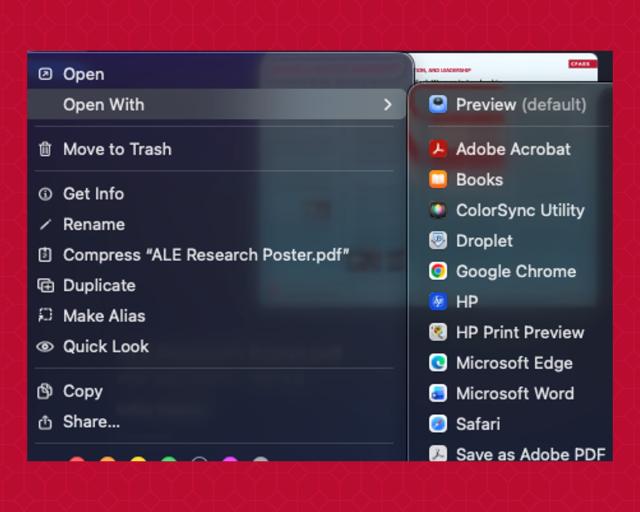
Right click on the document you want to send to the plotters and select “Open With” and choose “Preview”
Step 2
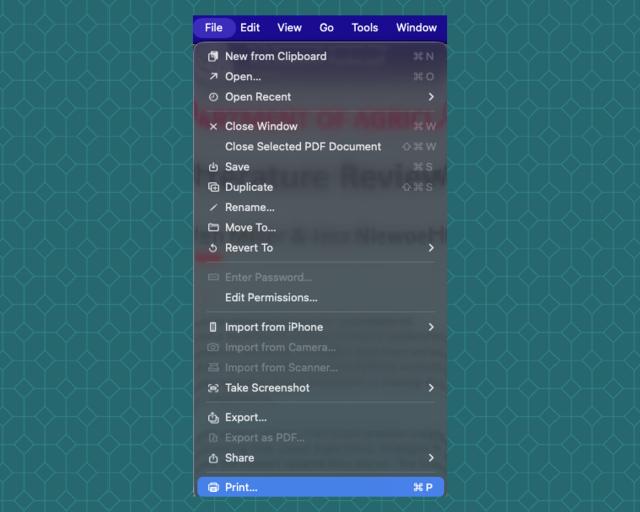
Once the document is open, select “File” in the top left corner and select “Print”
Step 3
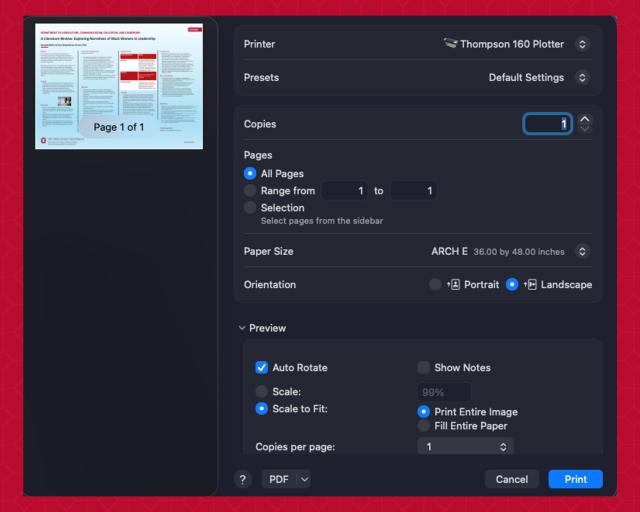
When the print window appears, select the following:
Printer: Thompson 160 Plotter
- Paper Size: Select the size paper you want (Ex. Arch E, Arch D)
- Orientation: Landscape
- Under the Preview dropdown:
- Check the “Scale to Fit: Print Entire Image” box
- Check the "Auto Rotate" box
Step 4
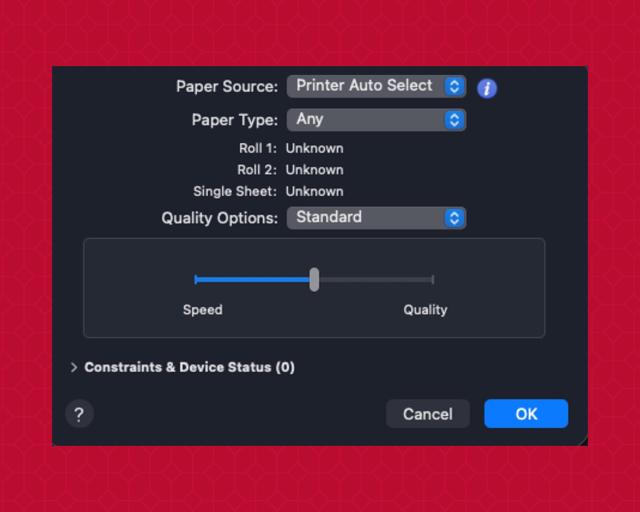
Under Printer Options:
- Paper/Quality: Click the “I” icon
- Move the print quality speed to the middle of the print quality bar to ensure a quality print
- Click “OK”
Step 5
- Click OK, then click PRINT. Type your last name.#.
- Posters can be printed at the plotter printers in THOMPSON 160. Swipe your BuckID or type in your last name.# to release the poster.